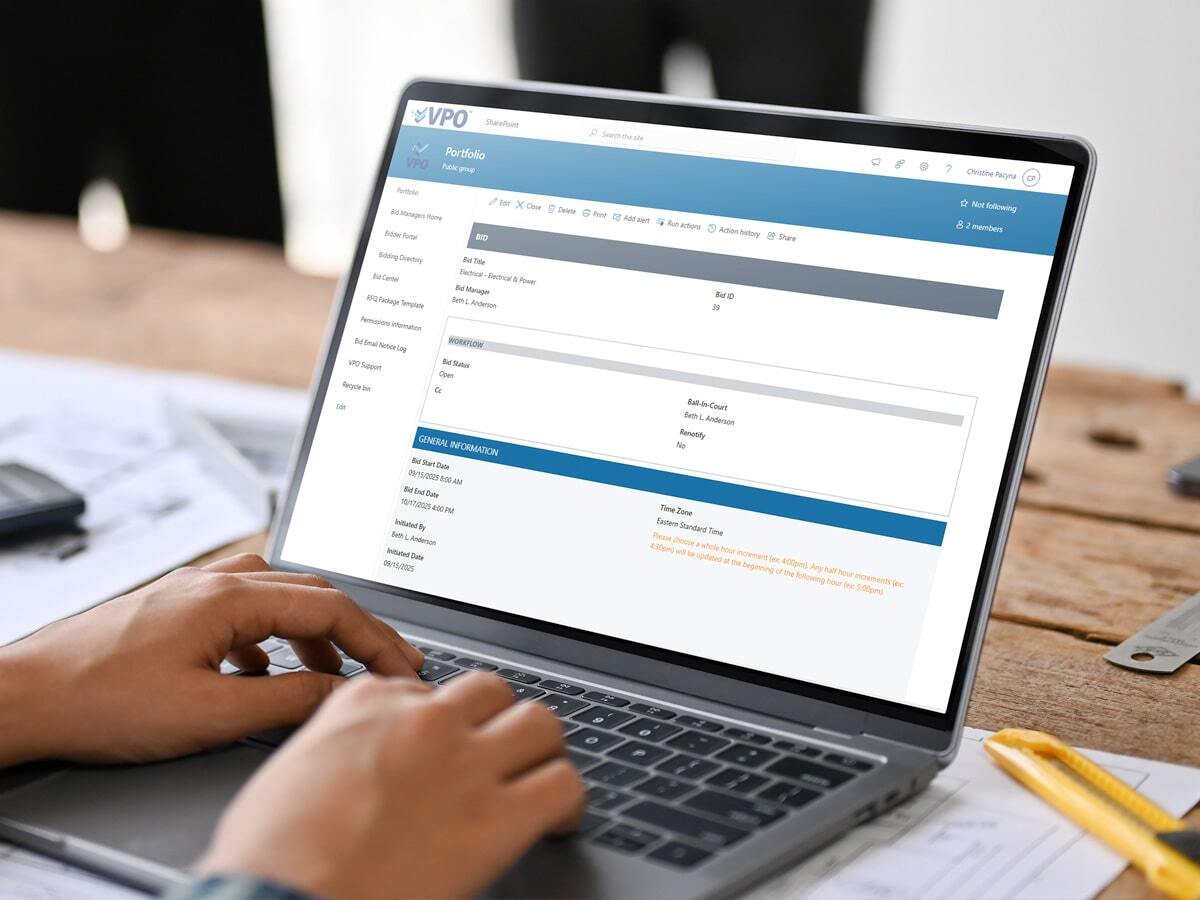
In Microsoft SharePoint, I have a Document Library that has a Word Template. I would also like to have a template in that same library for Excel and PowerPoint. How do I do that?
This is possible with the use of Content Types. SharePoint allows you to have multiple content types in a given library.
Follow these steps to have multiple Content Types:
- In the Document Library, under Library Tools, select Library, then Select Library Settings
- Click on Advanced Settings
- Click on Allow Management of Content Types
- Click OK
- Under Content Types, click on Document
- Click on Name and Description and change to Word Document (as an example)
- Click on Advanced Settings; here you can upload a template for the document library.
- Go Back to Settings
- Click Add from Existing Content Types and select Document
- Click on the Content Type just created
- Click on Name and Description and change to (Power point) for example
- Click OK
- Click on Advanced and upload a power point template
- Follow the same steps above for Excel